gift

Congrats! You've unlocked a limited-time exclusive 50% OFF!

Grab Now
Flow AI
Flow AI
    Free GeneratorPricing
Flow AI
Flow AI

Flow AI is an online AI video generator powered by Google's Veo technology. Turn text and images into cinematic clips in seconds β€” no install, no GPU.

Flow AI is an independent platform and is not affiliated with, endorsed by, or sponsored by Google. Veo is a trademark of Google LLC. All AI-generated content is created through third-party models under their respective licenses.

Product
HomePricing
Legal
Privacy PolicyTerms of ServiceRefund Policy
πŸ‡ΊπŸ‡Έ EnglishπŸ‡΅πŸ‡Ή PortuguΓͺsπŸ‡ͺπŸ‡Έ EspaΓ±ol
Β© 2024 Flow AI, All rights reserved
Privacy PolicyTerms of Service

Google Flow AI Video Generator

Flow AI β€” Transform your ideas into stunning videos in minutes Β· Cinematic AI video from text & images

Flow AI userFlow AI userFlow AI userFlow AI userFlow AI user
LIVE
5.0

from 0+ happy users

Active now
Verified
Upload Image (Optional)
0/2500
Features
Select Model

Every leading AI model, in one place

Veo 3.1

Flagship

Google's flagship β€” cinematic shots with native audio.

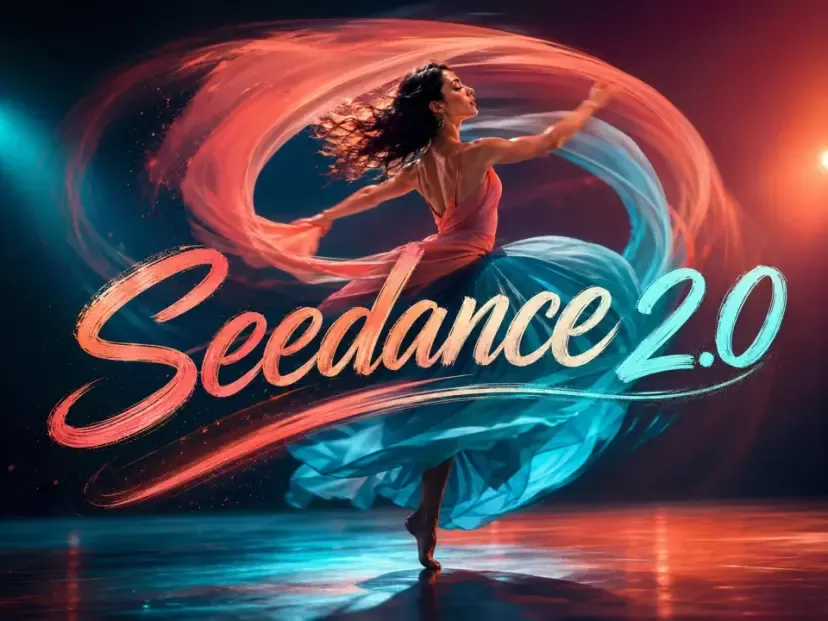
Seedance 2 AI video

Seedance 2

Smooth motion and natural choreography, up to 15 seconds.

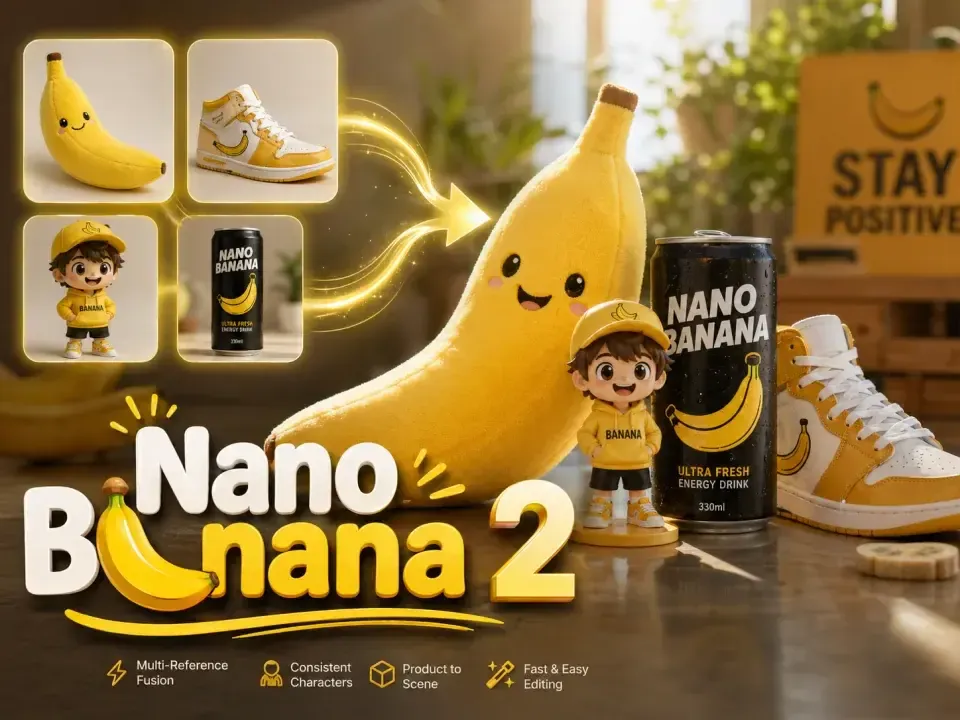
Nano Banana 2 AI image

Nano Banana 2

Multi-reference fusion with consistent characters.

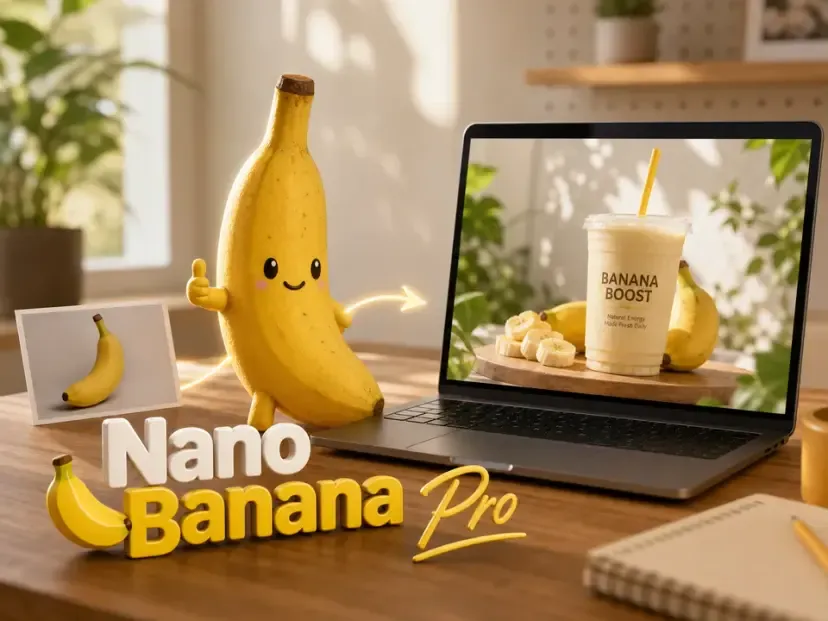
Nano Banana Pro AI image

Nano Banana Pro

Sharp product shots and clean compositions.

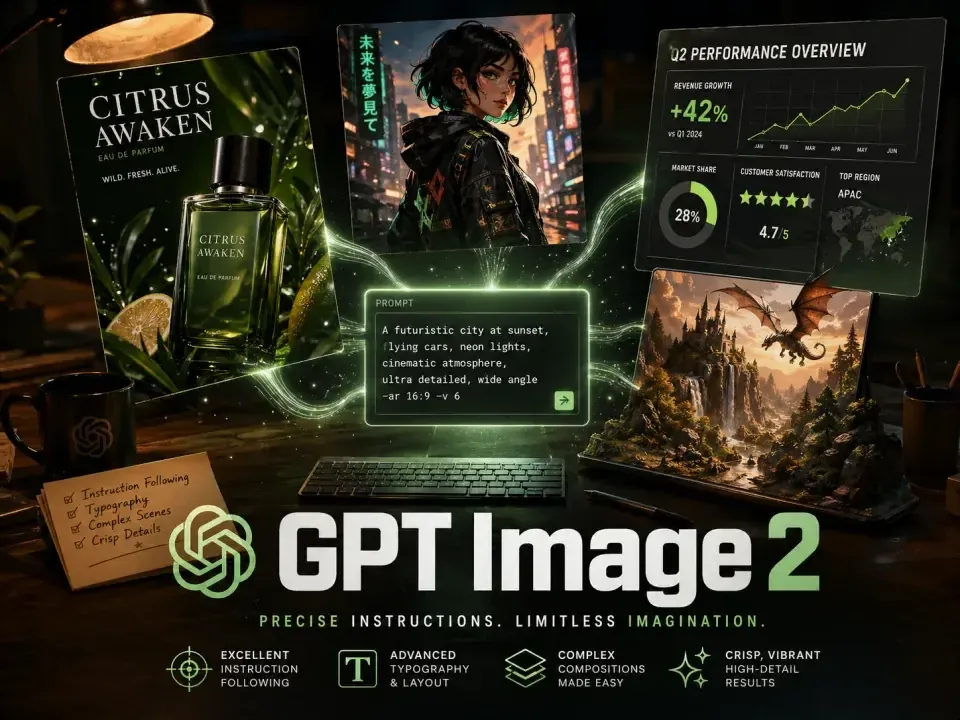
GPT Image 2 AI image

GPT Image 2

Editor's Pick

Precise prompts, crisp text, complex scenes.

What Creators Make with Flow AI

Start with words, an image, visual references, or two frames. See what each approach can bring to your next video.

Text to Video AI1 / 4
01Text to Video AI

Create scenes you can't shoot

A first-person flight through the stars starts with a description. Set the action, atmosphere, and camera movement to turn an imagined scene into a cinematic opening β€” no camera or crew needed.

Use it for

  • Story openings
  • Music video visuals
  • Concept films
Read the full prompt

First-person perspective, plummeting at high speed through a cosmic waterfall of stars, then lightning-fast reaching out to touch a planet, triggering an explosive white light. The camera plunges vertically at extreme speed, accompanied by intense jolts from the energy impact. Focus remains elusive as it rapidly shifts between the hand and the target planet, mostly blurred by motion. All stars stretch into sharp streaks of speed, and the moment of contact erupts with violent, fireworks-like particle effects and lens flares.

Try Text to Video

Text prompt

A first-person dive through stars, reaching out to touch a planet.
Video result
A cosmic fly-through builds to a burst of light.
02Image to Video AI

Put your character in motion

Give a still image its next moment. Start with your artwork or photo, then describe how the subject and camera should move. Here, a fantasy character becomes the star of an action shot.

Use it for

  • Character reveals
  • Animated artwork
  • Social clips
Read the full prompt

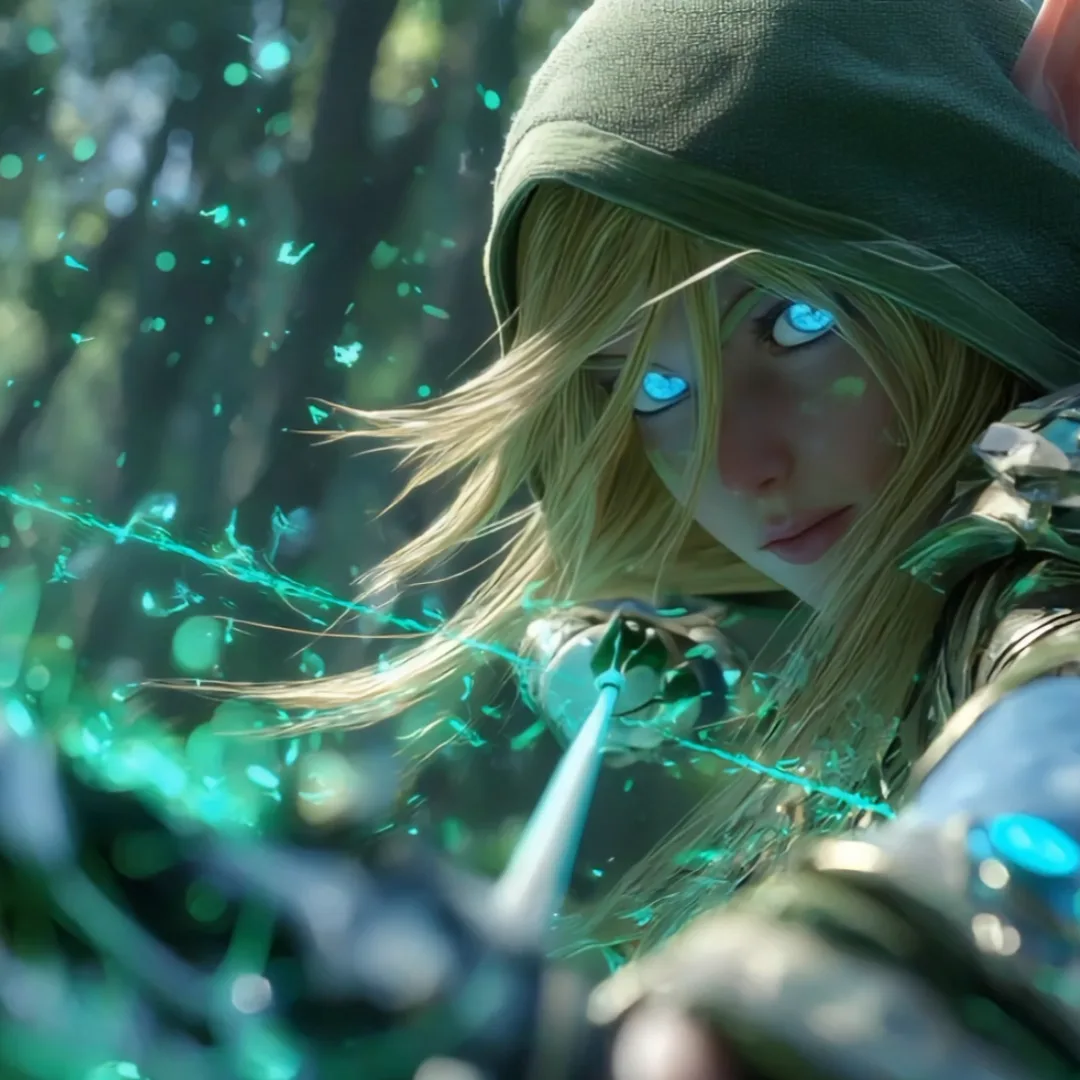
An elven archer in green armor, longbow drawn, wears a mysterious smile. Her golden hair sways naturally in the breeze. A vertical tracking shot circles behind her as a green-glowing arrow launches smoothly. The camera follows its trajectory through dense forest, sunlight filtering through leaves to create dancing patches of light. The handheld shot creates a dynamic sense of pursuit.

Try Image to Video

Starting image

Starting illustration of an elven archer

An elven archer illustration, plus a description of the action.

Video result
The archer comes to life with movement and a changing camera view.
03Reference to Video AI

Bring your references into one scene

Show the character, setting, or visual style you have in mind. Reference images give the model a visual direction to work from, helping you build a scene around the look you want.

Use it for

  • Character-led stories
  • Style explorations
  • Campaign concepts
Try Reference to Video

Reference images

Portrait reference for the character's appearance
Pink setting and makeup reference
Lipstick and clothing reference

Three references guide the person's appearance, pink setting, and lipstick shot.

Video result
One clip brings the visual references together in a pink studio scene.
04Frames to Video AI

Direct where the shot starts and ends

Choose the opening and closing images, then let Flow AI create the movement between them. Give a transition a clear destination instead of leaving the final frame to chance.

Use it for

  • Scene transitions
  • Visual reveals
  • Before-and-after stories
Try Frames to Video

Start and end frames

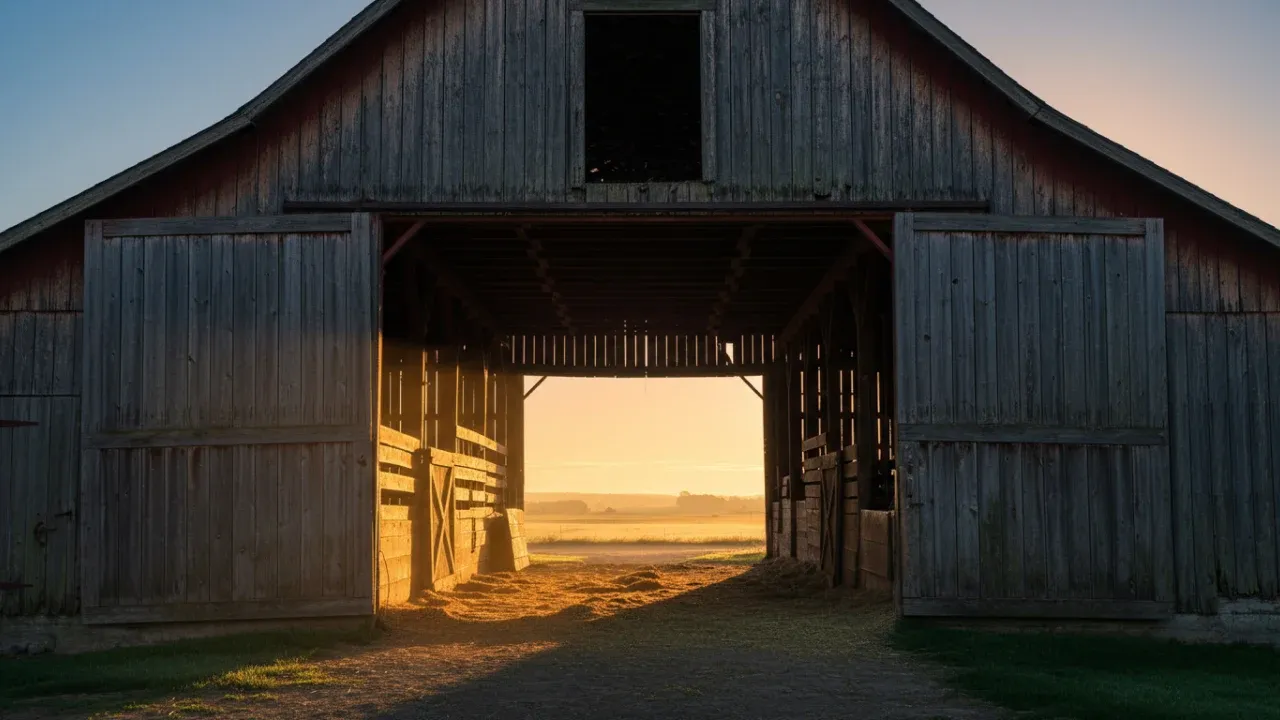
Opening frame: a sunlit barn

Start frame

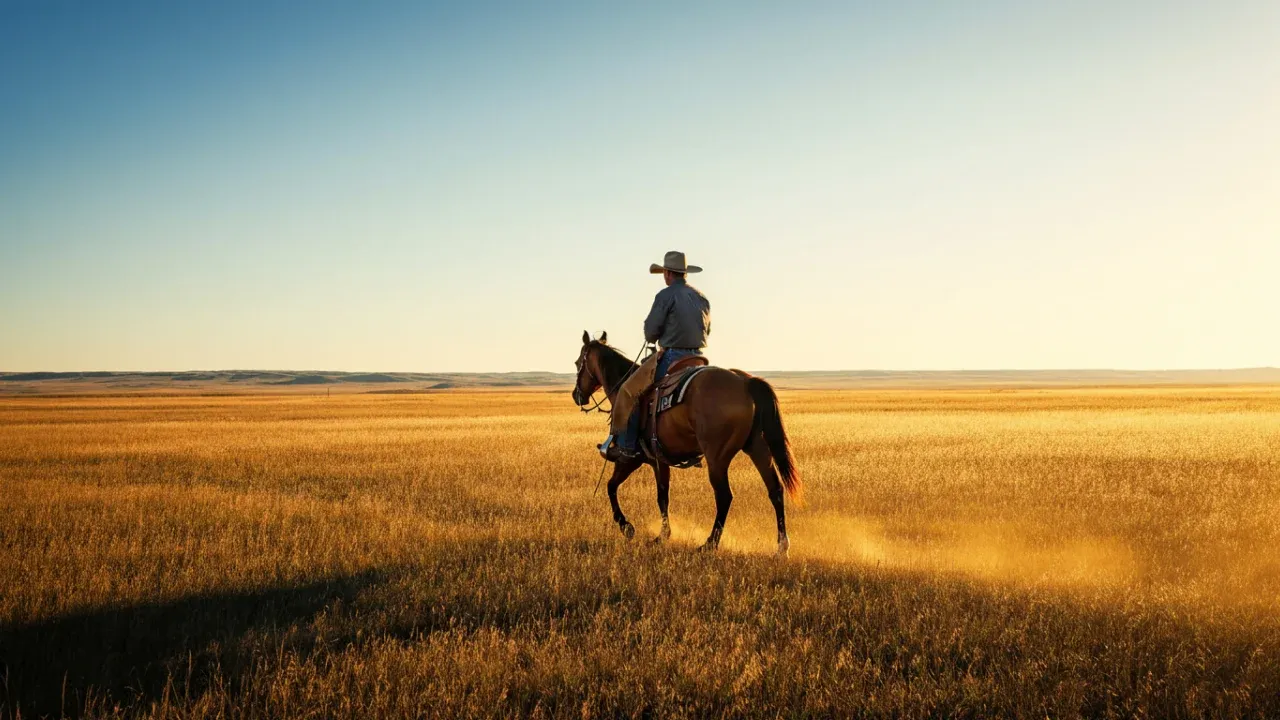
Closing frame: a rider on an open plain

End frame

A sunlit barn and a rider on an open plain define the two ends of the shot.

Video result
The view moves from the barn to the rider on the open plain.

Create a Video with Flow AI in 3 Steps

01

Start with text or images

Choose a model, then describe your video or upload images to guide the scene.

02

Choose your video settings

Set the length, resolution, aspect ratio, and audio options for your model. Check the credit cost before you generate.

03

Generate and download

Click Generate to continue in AI Studio, where you can follow the progress, preview your video, and download the MP4.

Create a Video
WHY FLOW AI

More Creative Options. One Place to Create.

Choose the model, sound, and controls your project needs without building a separate setup for each tool.

More Models, One Credit Balance

Choose Veo, Seedance, or MiniMax for your next shot. Try different creative directions using one Flow AI credit balance, without managing a separate subscription for each model.

01

Sound That Fits the Scene

Generate dialogue, ambience, and sound effects alongside video with Veo or MiniMax H3 Max. Bring your scene to life without assembling every sound from scratch.

02

Sharp, Watermark-Free Exports

Create videos up to 4K with supported models and download without a Flow AI watermark. Put a crisp, clean result into your social content, presentation, or client edit.

03

Direct the Details

Guide the look with references and choose the available duration, framing, resolution, and audio settings. Make the shot fit your idea and the screen it is made for.

04

Create Your Starting Image Here

Need an image before you can animate it? Create one with Nano Banana or GPT Image, then use it as the starting point for a video. Build both parts of your idea in Flow AI.

05

Create from Your Browser

Work from your computer or phone while generation runs in the cloud. No software to install, dedicated graphics card to buy, or editing timeline to learn before your first clip.

06

Simple, transparent pricing

Choose the Flow AI plan that fits your usage. Upgrade or cancel anytime β€” no contracts.

β€’ Cancel anytime

Small Pack

$18.80one-time

What's included

  • 560 credits
  • Valid for 1 year
  • Works on any model & resolution
  • No subscription required
  • No watermark, ever
  • Commercial use
Best Value

Medium Pack

$79.90one-time

What's included

  • 2,800 credits
  • Valid for 1 year
  • Works on any model & resolution
  • No subscription required
  • No watermark, ever
  • Commercial use

Large Pack

$199.00one-time

What's included

  • 8,100 credits
  • Valid for 1 year
  • Works on any model & resolution
  • No subscription required
  • No watermark, ever
  • Commercial use

Cancel anytime in Settings β†’ Billing. Questions? Email us at support@ai-flow.video

FAQ

Frequently Asked Questions About Flow AI

Got questions? Find answers below or reach out to our support team.

01

Is Flow AI free to use?

Flow AI offers both free and paid tools. Free Generator lets you turn an image into a 3- or 5-second video or generate images from text. No account or credit card is required. Text-to-video generation requires paid credits. Video models such as Veo 3.1 and Seedance 2 also require paid credits, whether you start with text or an image. You can get credits through a subscription or buy a one-time credit pack without subscribing. Signing up does not give you free credits.

02

How much does it cost to generate a video?

Each paid video generation uses credits. The credit cost is shown before you generate and depends on the model and settings you choose. For example, a 4-second Veo 3.1 Fast video at 720p without sound uses 20 credits. Credits are included with subscriptions and can also be bought in one-time credit packs. A credit pack does not require a subscription.

03

What should I include in an AI video prompt?

Start with the subject and action, then add the setting, lighting, and camera movement. For image-to-video, describe how the subject or camera should move and keep your instructions consistent with the uploaded image. The examples above show prompts alongside their video results.

04

How long does it take to generate a video?

Videos can be ready in a few minutes. The time depends on your model and settings and how busy the generation service is. Requests made with Free Generator may wait in a queue before generation starts. You can follow the progress on the page; keep the Free Generator page open until your video is ready.

05

Can I use my videos for commercial projects?

Videos generated using subscription credits or a purchased credit pack may be used for ads, client work, and other commercial projects. Videos made with Free Generator remain for personal, non-commercial use only, even if you later buy credits or subscribe. To create a video for commercial use, generate a new video using paid credits. Commercial use must also comply with our Terms of Service, applicable law, third-party rights, and model or provider restrictions.

06

Do I need an app, or can I use Flow AI in my browser?

Use Flow AI at ai-flow.video in a web browser on your computer or phone. You do not need to install an app or have a dedicated graphics card. Sign in to generate videos using paid credits. Free Generator works without an account.

07

How long can my videos be, and can I download them in HD or 4K?

Choose the video length and resolution before generating. Veo 3.1 supports clips up to 8 seconds, while Seedance 2 and MiniMax H3 Max support up to 15 seconds. HD and 4K options appear only when supported by the selected model and input mode. Download the finished video as an MP4 file.

08

Can I generate videos with sound?

Yes. Veo 3.1, Veo 3.1 Fast, and MiniMax H3 Max can generate sound along with the video. For Veo models, sound is enabled by default; turning it off lowers the credit cost. MiniMax H3 Max does not have an option to turn audio generation off.

09

Can other people see my uploads and generated videos?

Other users cannot browse your generation history on Flow AI. We do not publish your uploads or videos in a public gallery. The AI providers processing your request receive the inputs needed to create your result. For paid generations, Flow AI deletes uploaded files 7 days after upload and generated files 30 days after creation. Free Generator has no saved history on Flow AI; its provider sets its own retention periods. See our Privacy Policy for details.

Have more questions?Contact our support team β†’

Make Your First Flow AI Video Now

Write a prompt, pick a model, and get a cinematic clip in seconds. Your first video is a click away.

Get Started NowSee Flow AI Pricing